A computer to control
Install the Host app on your Mac, Windows PC or Linux machine. Keep it switched on when you want to use it.
 Command Runner
Download
Command Runner
Download
This is the plain-English version. Put the host app on the computer you want to control, install the iPhone or iPad app, connect them, and run a command.
Before you start
Install the Host app on your Mac, Windows PC or Linux machine. Keep it switched on when you want to use it.
Install Command Runner from the App Store. For the first connection, put both devices on the same Wi‑Fi network.
Step 1 · Host app
Use the download that matches the computer you want to control.
Mac: choose the signed direct download or the App Store release. Windows: download the 64-bit installer. Linux: download the package for your architecture.
Choose a download →On Mac, open the DMG and drag Command Runner to Applications, then open it from Applications. On Windows, run the installer and accept the normal prompts. On Ubuntu or Debian, open the downloaded .deb with Software Install or run sudo apt install ./commandrunner_*.deb.
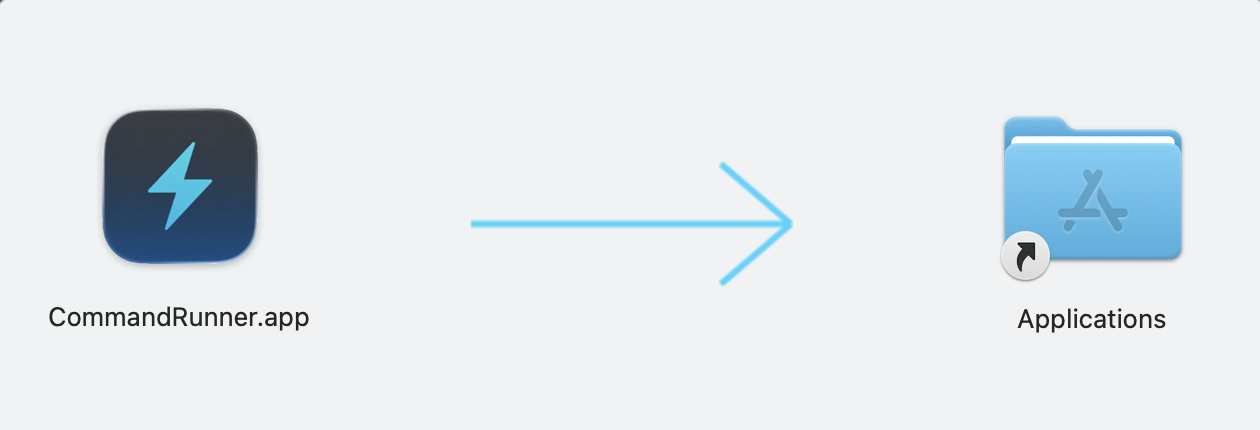
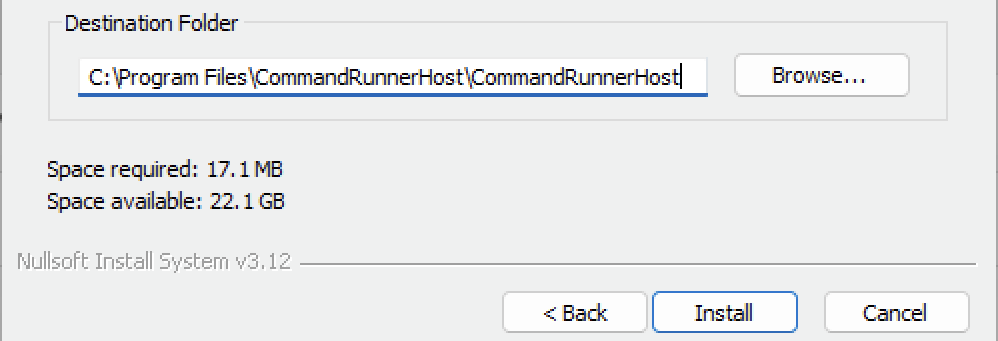
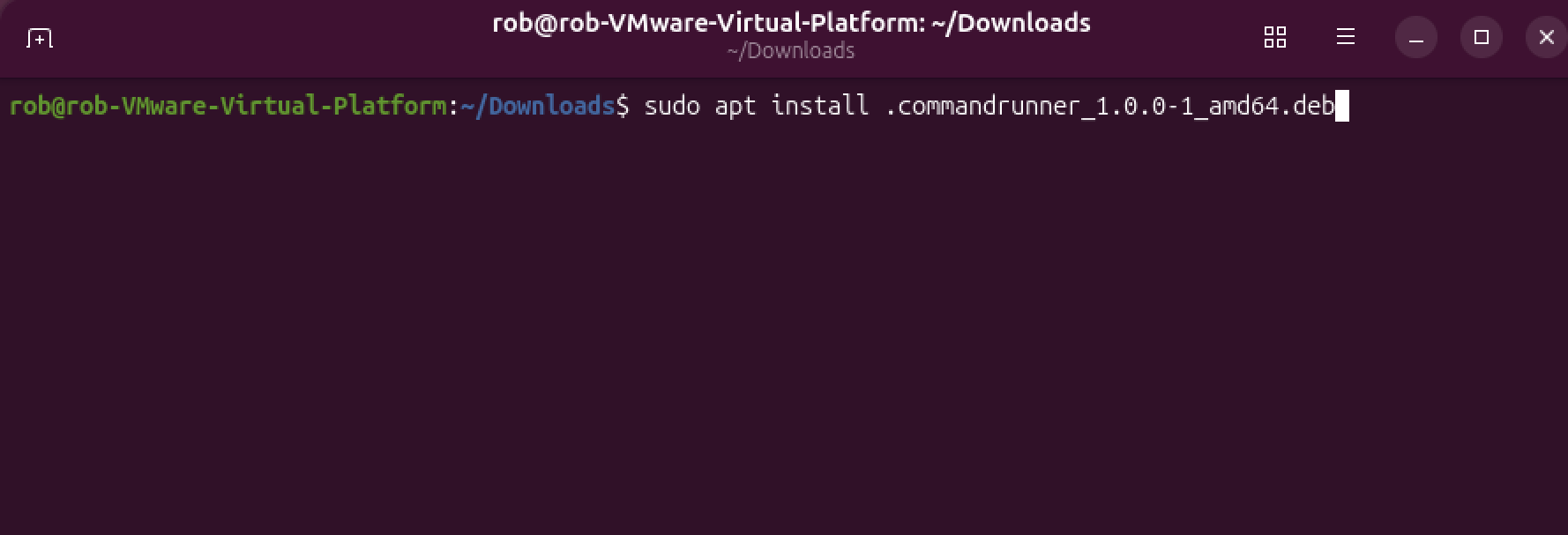
Open Command Runner on the computer. You can enable “Launch at startup” later in Settings if this machine should always be available.



Step 2 · Account
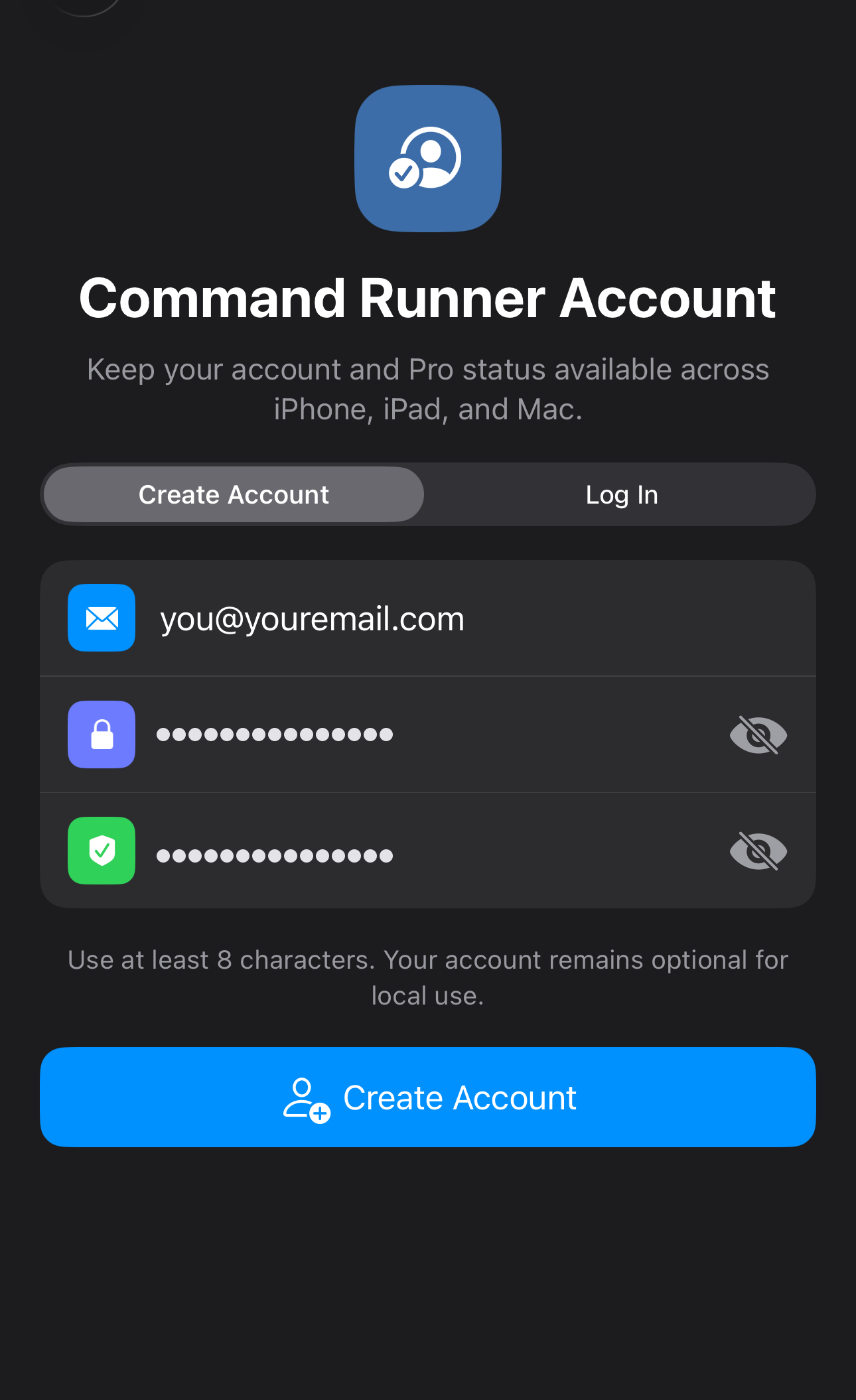
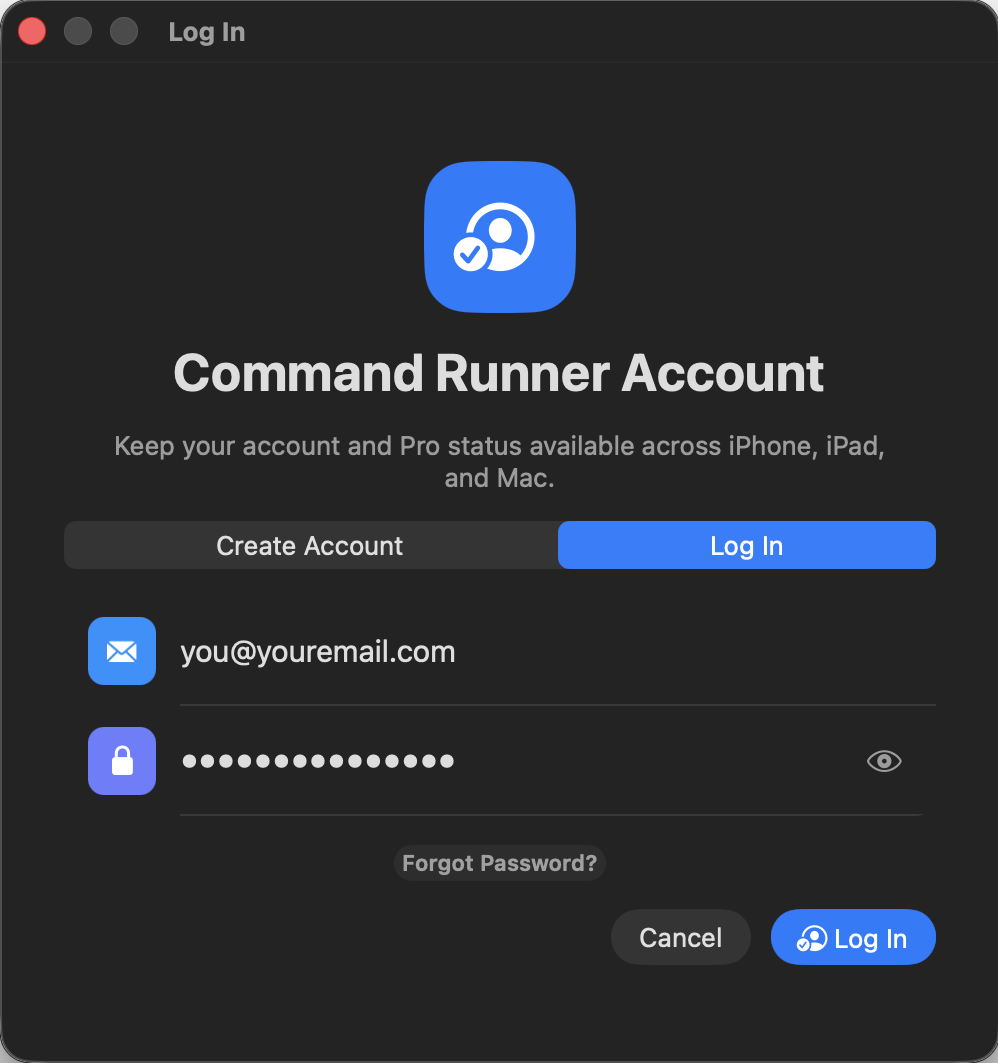
When Command Runner asks, choose Create Account and enter your email address and a password of at least eight characters. Already have an account? Choose Log In instead.
An account is useful for cloud access, Pro features and keeping your devices connected. Local-network control still works without a paid plan.
Step 3 · Connect iOS
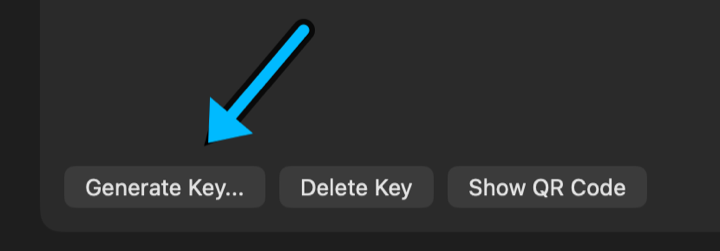
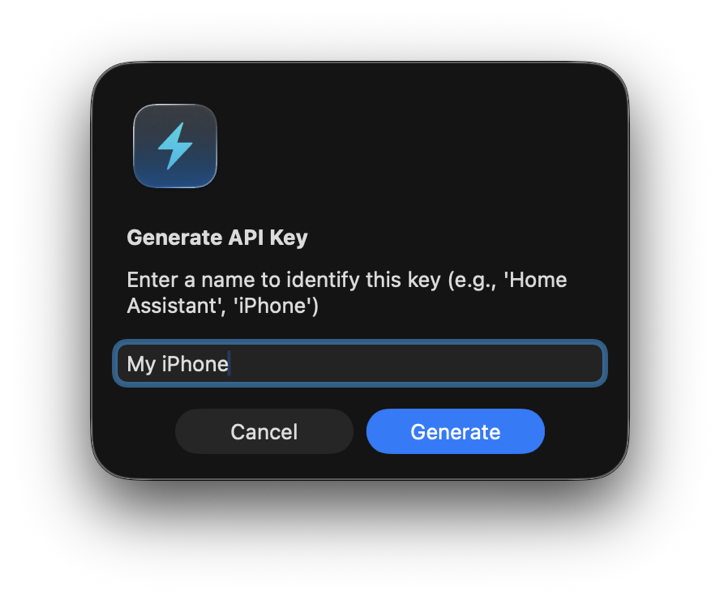
On the computer, open Settings and find the API keys area. Create a new API key, or use an existing one. Then choose the option to show its QR code.
1.1 Open Settings and click “Generate Key…”
1.2 Give the key a name.
1.3 The QR code appears on screen.
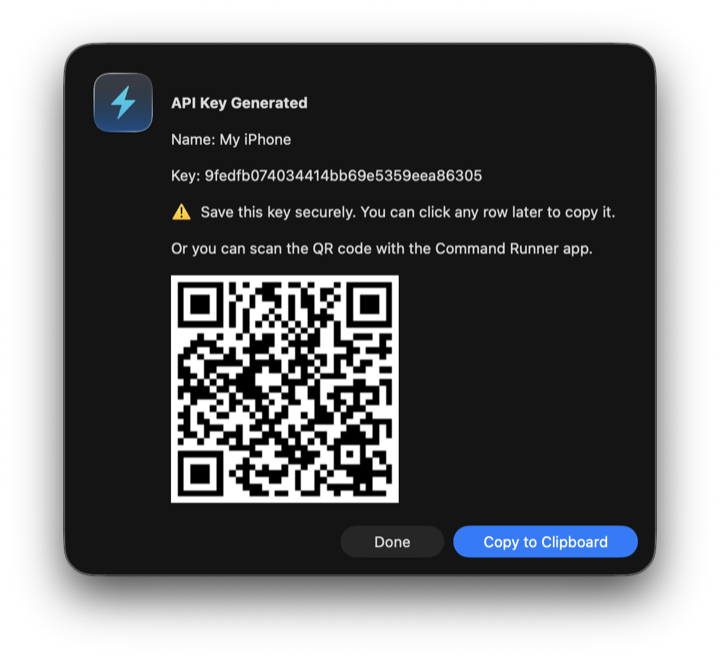
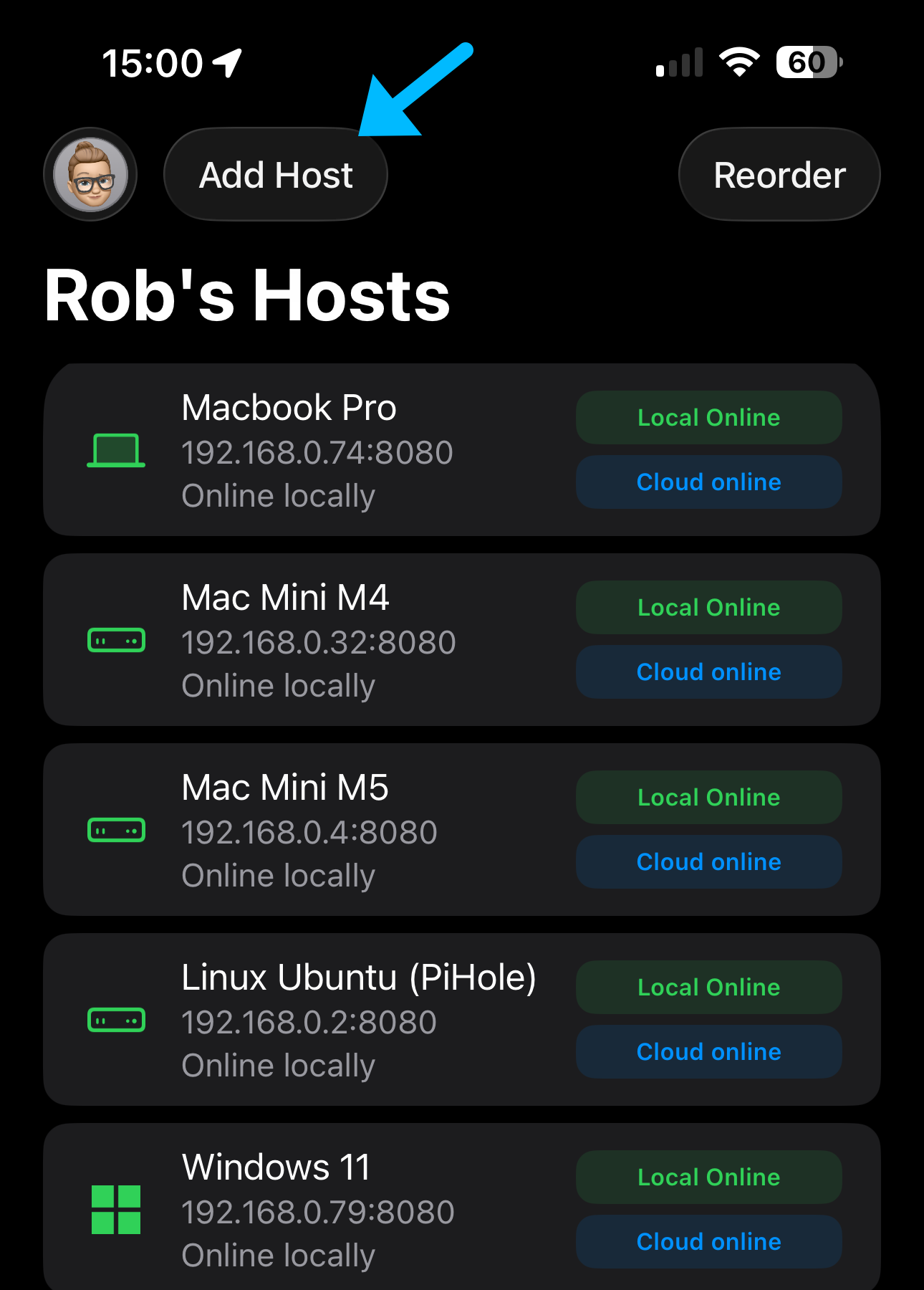
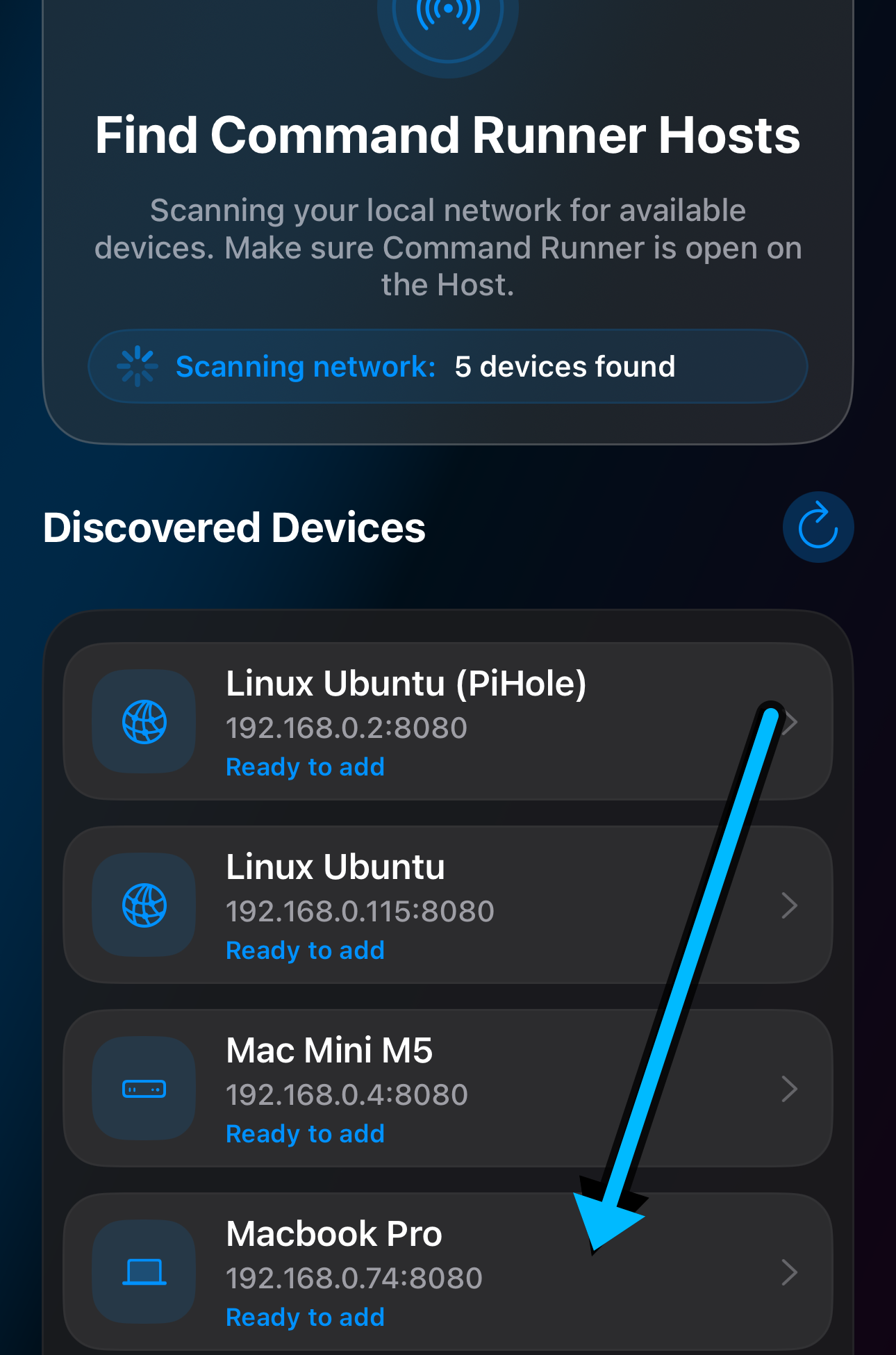
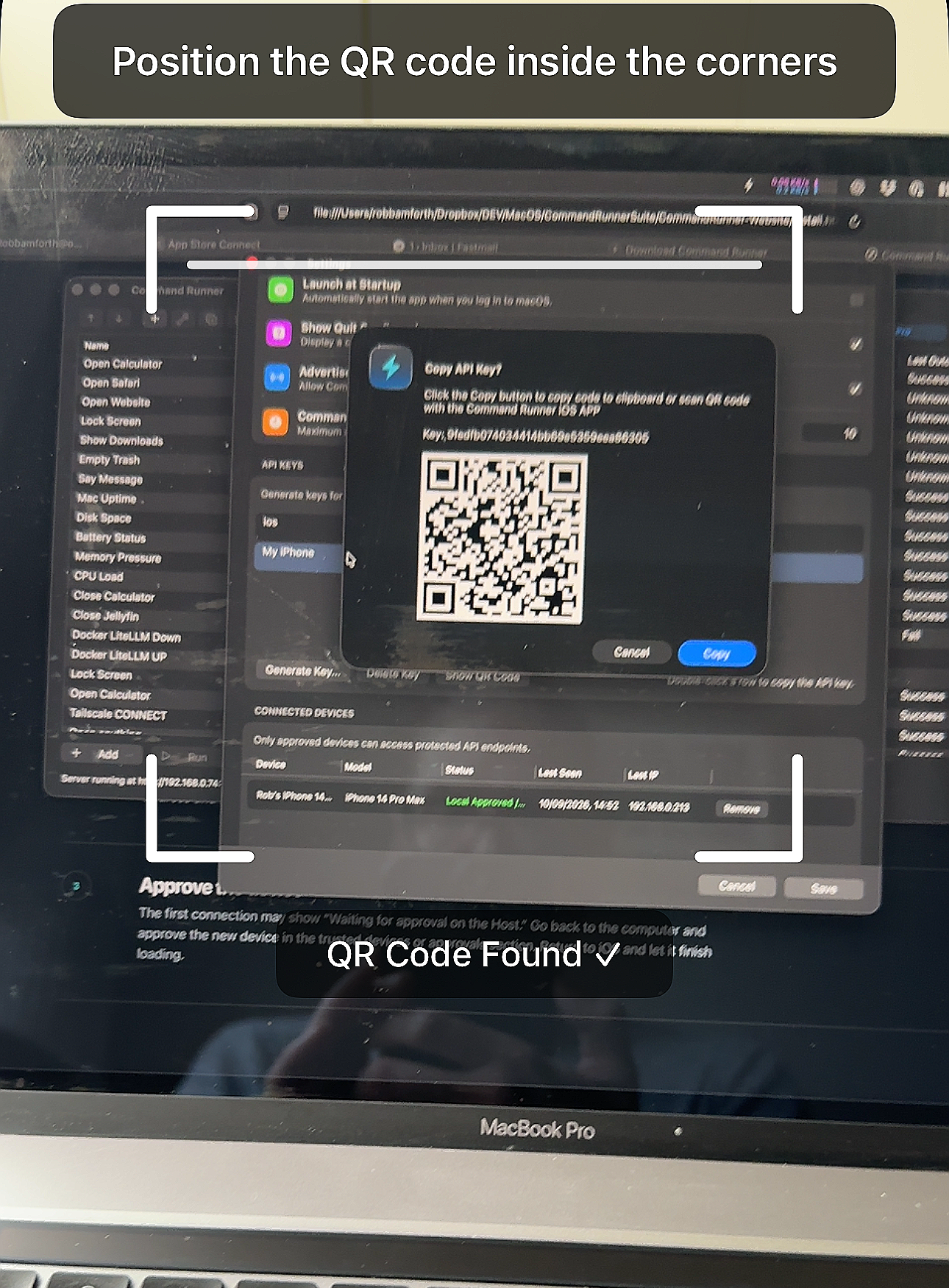
On your iPhone or iPad, open Command Runner and choose to add a Host. Let it check the local network, then scan the QR code shown on the computer. If scanning is awkward, enter the Host address and API key manually.
2.1 Tap Add Host on your iPhone.
2.2 Tap a discovered Host, or tap + to add one manually.
2.3 Scan the QR code with your iPhone camera in Command Runner.
2.4 Command Runner connects to the Host automatically.
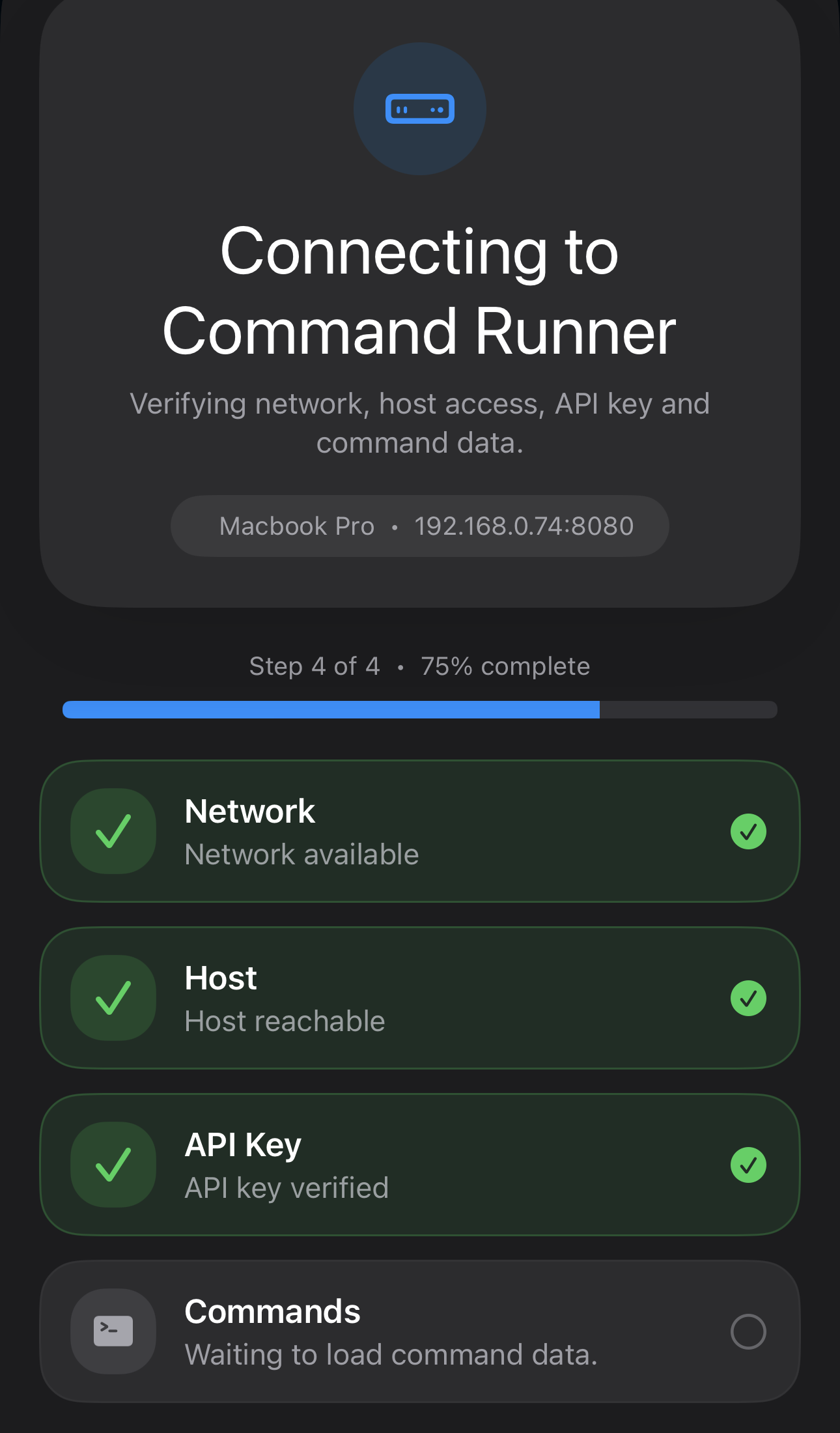
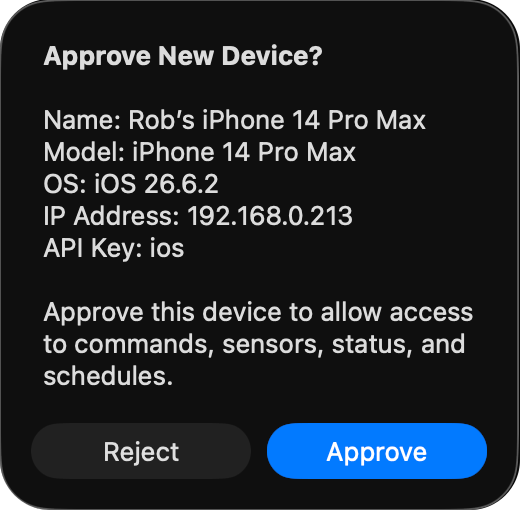
Your iPhone will stay on “Waiting for approval” until you approve it on the Host. Approve the new device when the prompt appears, then return to iOS and let it finish loading.
3.1 Your iPhone remains on “Waiting for approval” until you approve the device on your Host. Security First is built into every part of Command Runner. The iPhone must be on your local network the first time it connects, receive the API key from the Host running Command Runner, and receive your final approval before it can connect. You can remove a device’s approval at any time; once removed, it can no longer access the Host.
Step 4 · First run
Pick the Host you just added, choose a command such as opening an app or checking a sensor, review the details, and tap Run. Commands that need extra certainty may ask you to confirm or hold the button.
If the command completes, you’re done. Add favourites and schedules when you’re ready.
Open Calculator makes a great first command: it is available on most operating systems and gives you a clear, on-screen sign that the command worked.
Subscription required, free trial included.
Step 5 · Go beyond
Start with one Host, then turn Command Runner into your own control room. Add the computers you trust, keep their most useful commands close, and reach the right machine in seconds.
Bundle actions into a single Power Task: refresh a network, open the tools you need, create a calendar reminder, start a backup, check a service, or take care of a hundred other everyday jobs. Run them locally when you are nearby, or through Command Runner Cloud when you are away.
Once you know what you want automated, add favourites, build schedules, and let the routine work happen quietly in the background. One tap can do a lot.
If it doesn’t connect
For local setup, the iPhone and computer must be on the same Wi‑Fi or LAN. Guest Wi‑Fi often blocks device-to-device traffic.
Keep the Host app running and check that its local server is enabled. A firewall may need permission for Command Runner.
Try the manual Host address and API key, then check Support if the API key is rejected or approval never appears.